
Canceling your Paramount Plus subscription is straightforward when you know the right steps for your device. Many users choose to cancel after finishing their favorite shows, to save on monthly costs, or because the service no longer meets their entertainment needs.
Whether you signed up on Roku, Apple devices, Android, Fire TV, or through the web, each platform has a slightly different process.
This guide provides clear, step-by-step instructions to cancel Paramount Plus across all devices, including how to cancel Paramount Plus on Roku, mobile devices, smart TVs, and web browsers.
Follow these steps to end your subscription without frustration while continuing to enjoy your remaining billing period or free trial.
How To Cancel Paramount Plus? [Detailed Guide For Different Devices]
Paramount Plus is available across various devices and platforms. So, it is obvious that the signup and cancellation process would be different for each.

Here are the steps you can follow to cancel Paramount Plus on different devices:
1. Cancel Paramount Plus On Web Browser
Most Paramount Plus subscribers use web browsers to stream their favorite shows and movies. For those who signed up directly through the Paramount Plus website, canceling through a web browser is simple.
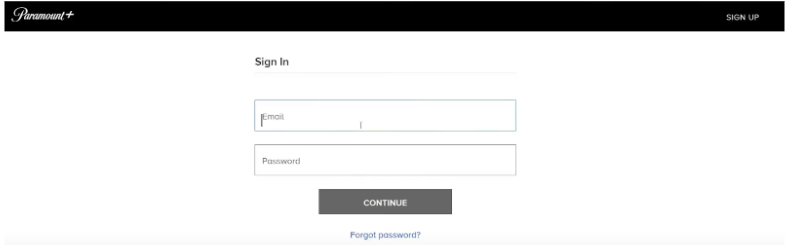
Step 1. Go to paramountplus.com and log in to your account.
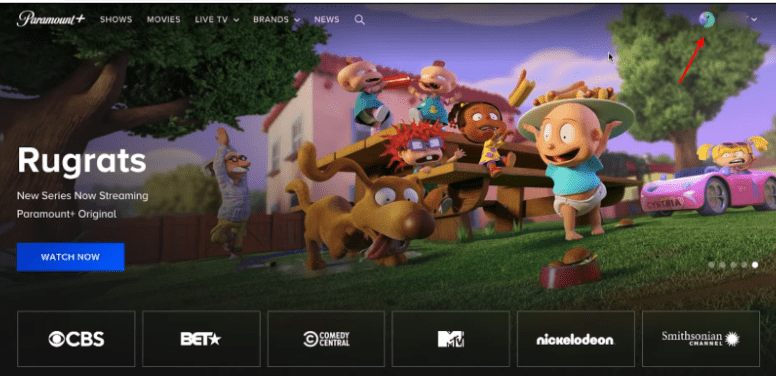
Step 2. Click on your username in the top right corner.
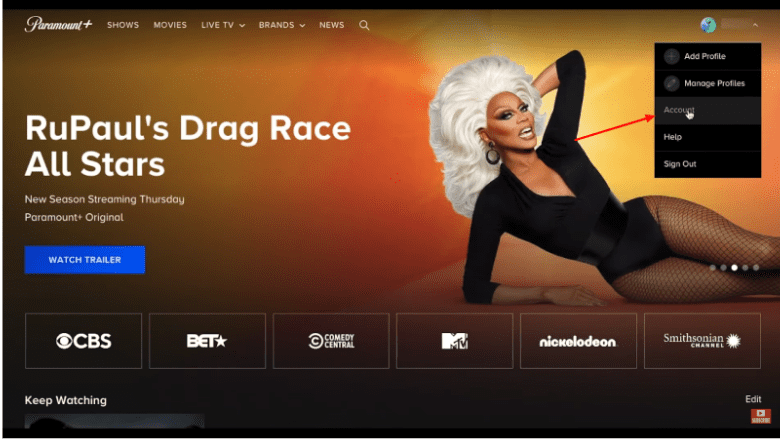
Step 3. Select “Account” from the dropdown menu.
Step 4. Scroll down to find the “Cancel subscription” button and click on it.
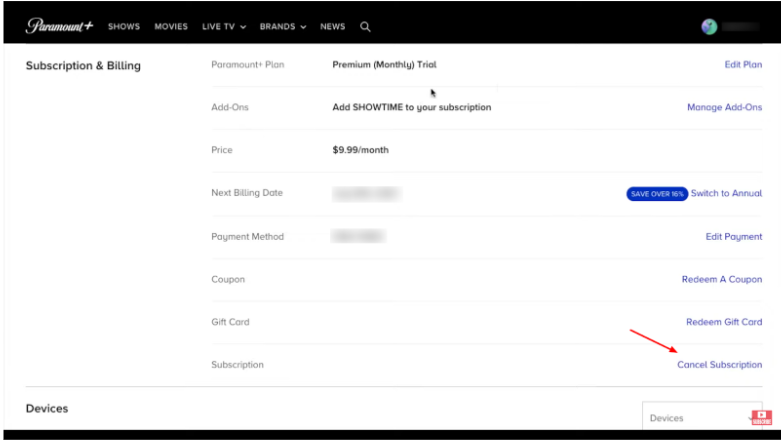
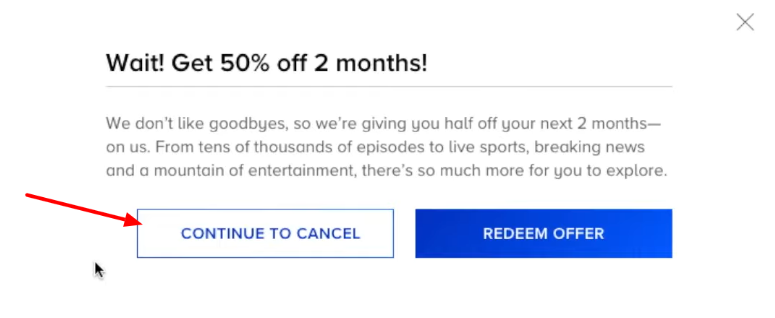
Step 5. Click on “Continue to Cancel” and follow the prompts to confirm.
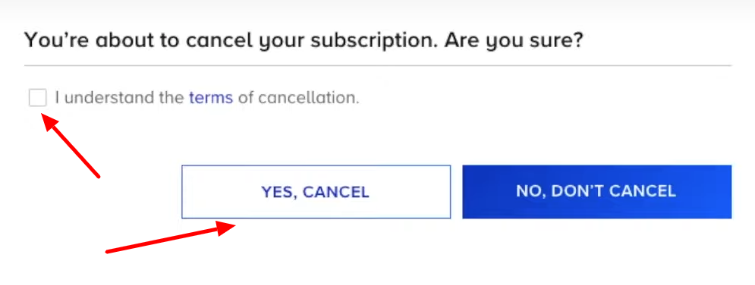
Step 6. In the last step, check the “terms of cancellation” box and then click the “Yes, Cancel” button to confirm your cancellation.
After cancellation, your Paramount+ subscription will remain active until the end of your current billing period or free trial. You won’t be charged again once the subscription ends.
2. Cancel Paramount Plus Using iPhone Or iPad
If you subscribed to Paramount Plus through the App Store, you’ll need to cancel through your Apple account settings.
Step 1. Open the Settings app on your iPhone or iPad.
Step 2. Tap on your name at the top of the screen.
Step 3. Select “Subscriptions.”
Step 4. Find and tap on “Paramount+.”
Step 5. Tap “Cancel Subscription” and confirm your choice.
If you don’t see the ‘Cancel Subscription’ option, your subscription is already canceled, and it won’t renew.
3. Cancel Using Android Devices
For Android users who subscribed through the Google Play Store, cancellation is done through your Google account.
Step 1. Open the Google Play Store app.
Step 2. Tap on your profile icon in the top right corner.
Step 3. Select “Payments & subscriptions.”
Step 4. Tap on “Subscriptions.”
Step 5. Find Paramount+ in the list and tap on it.
Step 6. Select “Cancel subscription” and follow the prompts.
4. Cancel Paramount Plus On Apple TV
Canceling on Apple TV is similar to the process on other Apple devices but with a slightly different interface.
Step 1. Go to Settings on your Apple TV.
Step 2. Select “Users & Accounts,” then choose your account.
Step 3. Select “Subscriptions.”
Step 4. Find Paramount+ in the list and select it.
Step 5. Choose “Cancel Subscription” and confirm.
5. Cancel On Fire TV
If you signed up through Amazon TV or Fire TV, you’ll need to cancel through your Amazon account.
Step 1. Go to amazon.com and log in to your account.
Step 2. Navigate to “App Store Subscriptions.”
Step 3. Find Paramount+ in the list and select the “Actions” button next to it.
Step 4. Click the “Turn off auto-renewal” option.
Step 5. Follow the prompts to confirm cancellation.
Note: Deleting the Paramount+ app from Fire TV does not cancel your subscription. You must turn off auto-renewal through your Amazon account.
6. Cancel On Roku
If you’re wondering how to cancel Paramount Plus on Roku, you can do it either directly from your Roku device or through your Roku account on a web browser.
Step 1. Go to your Roku home screen.
Step 2. Highlight the Paramount+ channel.
Step 3. Press the asterisk (*) button on your Roku remote.
Step 4. Select “Manage subscription.”
Step 5. Choose “Cancel subscription” and confirm.
7. Cancel Paramount Plus On Prime Video
For those who added Paramount+ as a channel on Prime Video, cancellation is done through Amazon’s website.
Step 1. Go to amazon.com and sign in.
Step 2. Navigate to “Your Accounts.”
Step 3. Select “Your Prime Video” under the Digital Content and Devices section.
Step 4. Click on “Channels” in the left sidebar.
Step 5. Find Paramount+ and click “Cancel Channel.”
Step 6. Confirm your cancellation.
Cancel Paramount Plus Through Partner Platforms
If you subscribed to Paramount+ through a third-party partner, you must cancel directly from that platform. Paramount+ cannot cancel it for you.
This includes:
- Walmart+
- T-Mobile
- Verizon
- Xfinity
- Optus SubHub
- TV providers or promotional bundles
Visit the partner’s website or account dashboard to manage or cancel your subscription.
How to Cancel Paramount Plus Free Trial?
If you’re on the Paramount Plus free trial and want to cancel before being charged, the process is similar to canceling a regular subscription. However, it’s important to do this before your trial period ends.
Step 1. Go to paramountplus.com and log in to your account.
Step 2. Click on your username in the top right corner.
Step 3. Select “Account” from the dropdown menu.
Step 4. Scroll down to find the “Cancel subscription” button.
Step 5. Click on “Cancel subscription” and follow the prompts.
Step 6. You may be asked to select a reason for cancellation. Choose the most appropriate option.
Step 7. Confirm your cancellation.
Note that after cancellation, your free trial will remain active until the trial period ends, after which your subscription will not renew or be charged.
What Happens After Canceling Paramount Plus Subscription?
After canceling your Paramount Plus subscription, several things will happen:
- You’ll continue to have access to Paramount+ channels until the end of your current billing period or free trial. After that, streaming access and downloaded content will no longer be available.
- Any content you’ve downloaded for offline viewing will become unavailable. If you want to finish the downloaded shows or movies, make sure to watch them before canceling.
- You won’t be charged for the next billing cycle. Your cancellation takes effect at the end of your current billing period.
- You can still enjoy previously watched content on your account until the end of the current billing period. This means if you cancel mid-month, you’ll still have access until the end of that month, depending on your billing cycle.
- You can reactivate your subscription at any time to regain full access. If you change your mind, you can easily sign up again, although you may lose any special offers or grandfathered rates you previously had.
- Your account information and viewing history will be retained for a period of time. If you resubscribe later, you may find your watchlist and preferences still intact.
- You may continue to receive promotional emails from Paramount+ unless you specifically opt out of their mailing list.
Do I Get A Refund For Canceling A Paramount Plus Plan?
Generally, Paramount Plus doesn’t issue refunds for canceled subscriptions. Their policy is designed to allow you to use the service until the end of your current billing cycle rather than providing a prorated refund.
However, you’ll still have full access to Paramount+ for the remainder of your subscription period. This means if you’ve paid for a month and cancel after a week, you can continue to use the service for the remaining three weeks.
Conclusion: Cancel Your Paramount Plus Subscription Using Any Device
Ending your Paramount Plus subscription is easier than it seems once you follow the platform-specific steps.
Whether you’re using Roku, mobile devices, Fire TV, or a web browser, the cancellation process is straightforward, and your account remains active until the end of your current billing period or free trial.
While refunds are not provided, you can still enjoy your remaining shows and movies. When ready, you can always reactivate your subscription and pick up right where you left off.
