
A common question among streaming users is whether Roku supports IPTV. While Roku does not offer native IPTV apps through its official channel store, there are reliable workarounds to access content.
This article provides clear, step-by-step instructions to set up IPTV on Roku, explains the platform’s limitations, and compares alternative streaming devices when necessary.
Whether you’re troubleshooting installation issues or evaluating the best platform for IPTV, this guide offers detailed solutions and actionable insights to help you make informed choices.
What Is IPTV and Why Roku Makes It Complicated?
IPTV is just watching TV through the internet instead of cable or satellite. Think of it like Netflix, but for live TV channels.
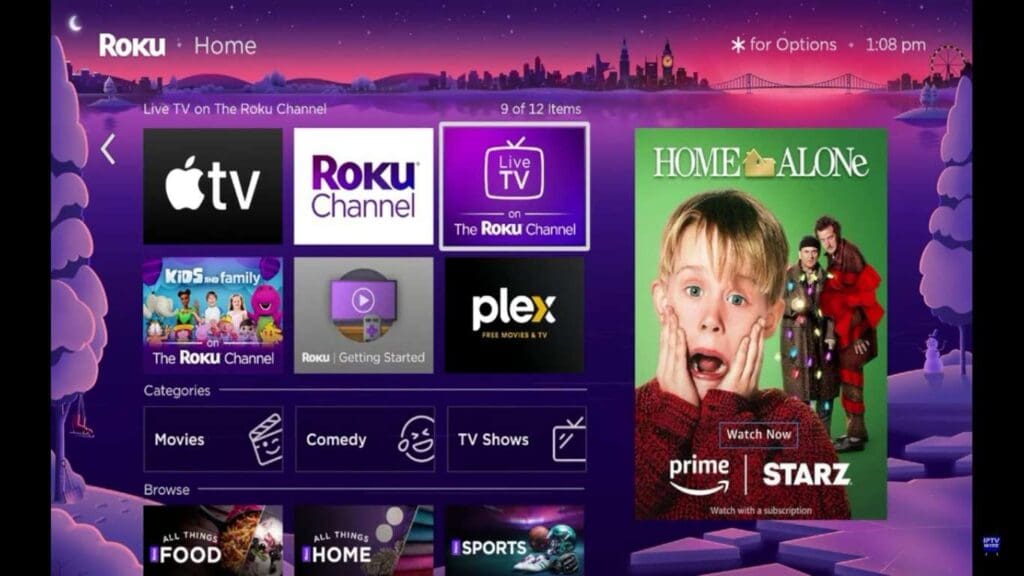
They have strict rules about which apps get approved, and most IPTV apps don’t make the cut. This closed system makes it hard to install the apps you want. Other streaming devices let you install apps easily, but Roku blocks this.
You can still get IPTV on Roku, but it requires using developer mode, a process that can be confusing for many users. For a deeper understanding of how IPTV delivers internet-based television, learn more about how IPTV works.
How To Set Up IPTV On Roku?
Getting IPTV on Roku takes time and some skills since there’s no easy app store option. The process isn’t as simple as clicking “install” like on other devices.
The Most Reliable Method is the Developer Mode Installation
This method works by turning on hidden developer features that let you install apps manually. It’s the best way to get IPTV on Roku, but it’s not simple.
Requirements:
- Roku device with internet connection.
- Computer or smartphone on the same WiFi network.
- Active IPTV subscription with login details.
- Basic tech skills and patience.
IPTV On Roku Installation Process
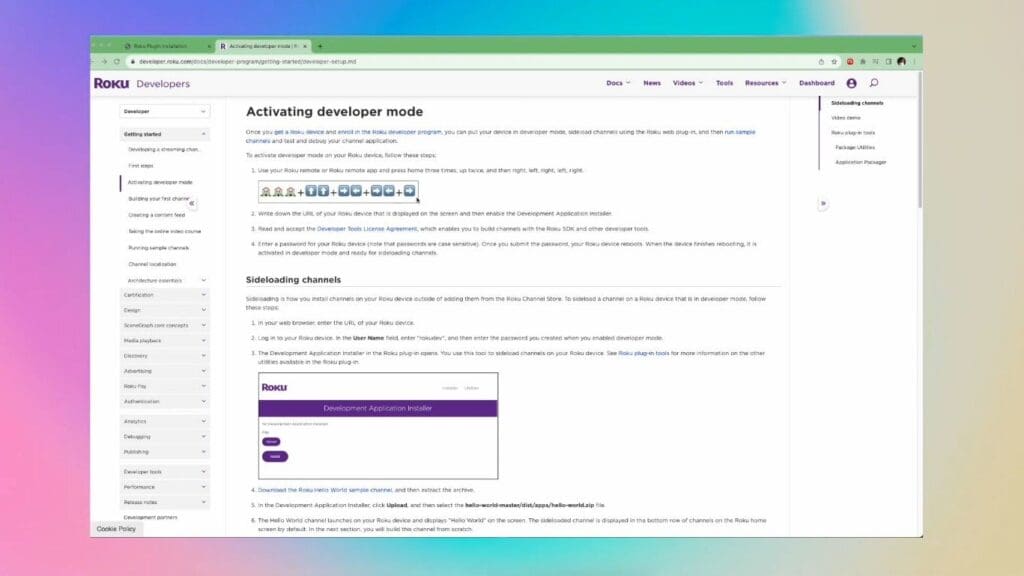
Step 1: Turn On Developer Options on Roku
Go to Settings, then System, then Advanced system settings, then Developer options. Turn on Developer mode and follow the steps.
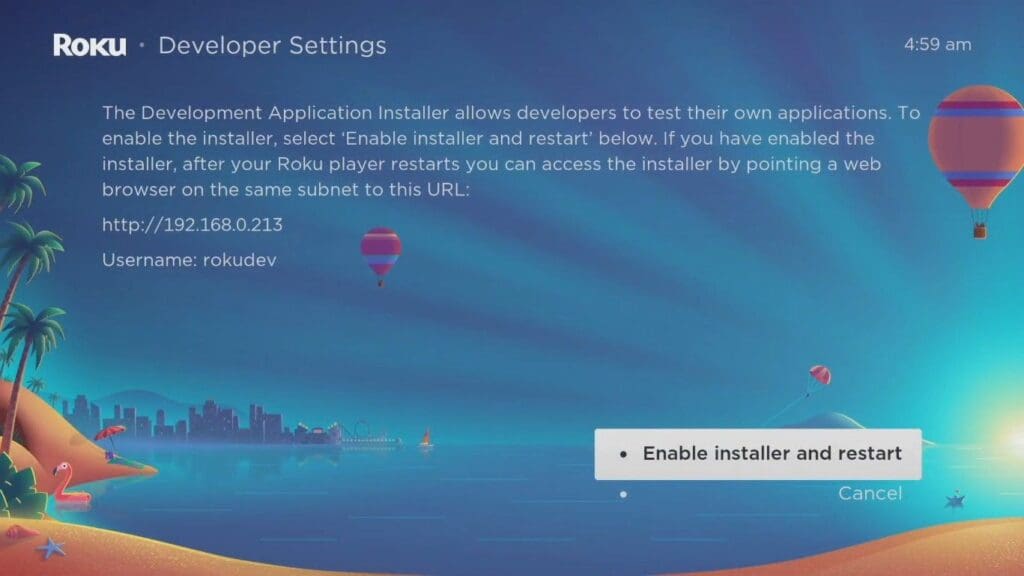
Step 2: Get Ready to Install
Download IPTV app files from trusted websites and make sure your computer can connect to your Roku’s network address.
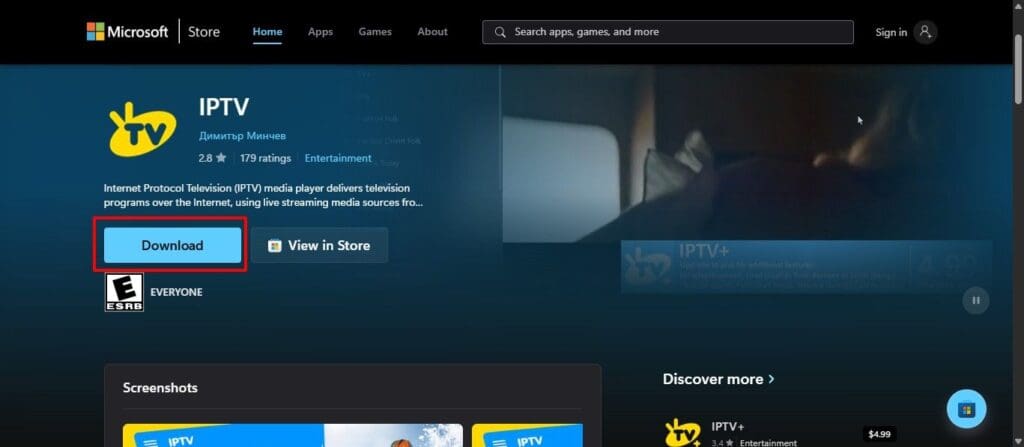
Step 3: Install Through Web Browser
Open a web browser, type in your Roku’s IP address, and upload the app files through the developer page.
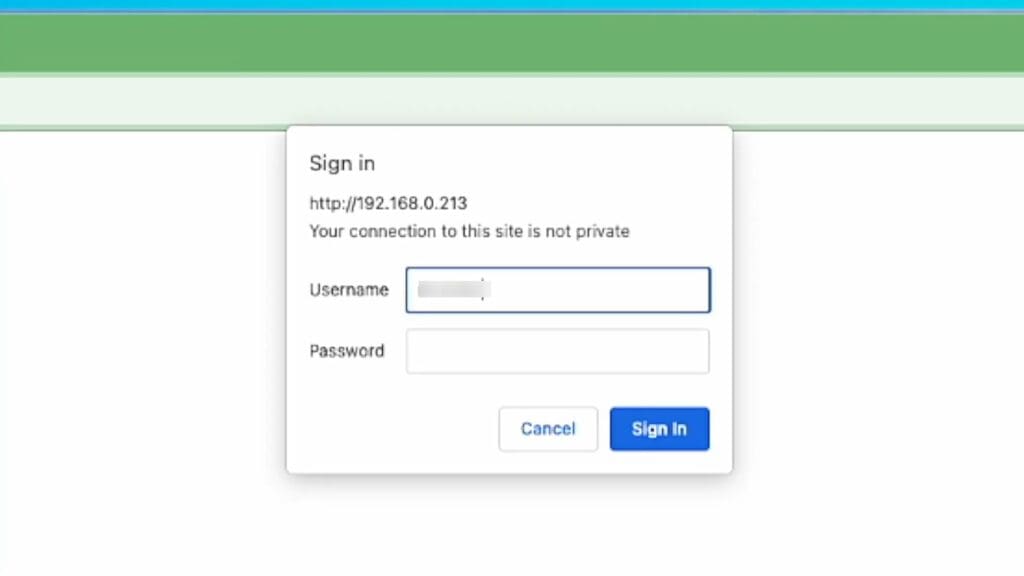
Step 4: Set Up the App
Open your new IPTV app, type in your account details, and adjust settings based on what your IPTV provider tells you.
Keep in mind that apps installed this way won’t update by themselves. You’ll need to do this process again when new versions come out.
For detailed guidance on configuration and setup processes, check out our complete guide to set up IPTV, which covers various devices and platforms.
Alternative IPTV Setup Methods For Roku
If developer mode sounds too hard, there are other ways to get IPTV on your Roku. Each method has good and bad points that affect how well it works.
| Method | Difficulty | Reliability | Cost |
|---|---|---|---|
| Developer Mode | Hard | High | Free |
| Screen Mirroring | Easy | Medium | Free |
| Paid Store Apps | Easy | Medium | $10-15 |
| Channel Codes | Medium | Very Low | Free |
These different ways to set up IPTV give you options based on your tech skills and what you’re willing to deal with. Here’s what each method means for your streaming experience.
- Screen Mirroring: This lets you show your phone or computer screen on your Roku. It’s easy to set up, but your phone battery dies fast and you can’t use your phone for other things while watching.
- Store Apps: You can buy basic IPTV players from Roku’s official store. These are easy to install but don’t work as well as apps on other devices, plus they cost more money.
- Private Channels: These use special codes to install hidden channels. The problem is that Roku removes these channels without warning, so they stop working randomly.
Think about how much tech trouble you want to deal with before picking one of these methods. Some need more ongoing work than others.
Best IPTV Alternatives To Roku In 2026
Many people who try IPTV on Roku end up switching to other devices that work better. These alternatives are easy if you want to install IPTV apps.
| Feature | Roku (Sideloaded) | Amazon Fire TV | Android TV |
|---|---|---|---|
| Setup Complexity | Hard | Easy | Easy |
| App Availability | Limited | Many Options | Many Options |
| Remote Control | Full Support | Full Support | Full Support |
| Stability | Good | Excellent | Excellent |
| Updates | Manual | Automatic | Automatic |
Amazon Fire TV and Android TV makes IPTV easy to use and also, clearly beats Roku in almost every way that matters for streaming.
1. Amazon Fire TV Stick (Top Recommendation)
Fire TV makes IPTV simple because Amazon allows IPTV apps in their app store. You just download what you want, type in your login details, and start watching. The apps update themselves, and everything works without constant fixing or troubleshooting.
2. Android TV Devices
Android TV boxes and smart TVs give you the most IPTV app choices through the Google Play Store. These work great for people who want lots of control over their setup and don’t mind having many app options.
Most cord-cutters who want easy IPTV pick Fire TV Stick because it works right out of the box without technical headaches.
If you’re exploring alternatives for getting IPTV on Roku or other devices, you can check out Xtreme HD IPTV, which offers high-quality streaming across multiple platforms, and if it’s worth a pick.
Limitations Of Using IPTV On Roku
Before you spend hours trying to get IPTV working on Roku, you should know about the problems you’ll face. These issues might make you want to try a different device instead.
- Single App Limitation: You can only install one app at a time in developer mode, so you can’t have multiple IPTV services installed together.
- Developer Mode Required: Every IPTV solution requires you to turn on developer features, which scares most people who just want to watch TV.
- No Automatic Updates: Apps you install manually won’t update themselves, so you have to reinstall them every time there’s a new version.
- Limited App Options: Most popular IPTV apps aren’t made for Roku, so you have very few choices compared to other streaming devices.
- Apps Crash Often: Manually installed apps break more often and might stop working when Roku updates its system software.
- Future Problems: Roku could turn off developer mode or change their rules anytime, which would break your IPTV setup completely.
These problems make Roku a poor choice if you want IPTV that just works without constant fixing and maintenance.
Legal Considerations And Safe IPTV Practices For IPTV Installation
Using IPTV safely means picking legal services and following the rules to avoid getting in trouble. Here’s a guide on whether IPTV is legal & how to stay on the right side of the law while streaming.
- Pick legal IPTV providers that pay for the right to show content instead of free services that seem too good to be true.
- Stay away from suspicious free services because they usually don’t have permission to show the content, which can get you in legal trouble.
- Research providers before paying by reading customer reviews and checking forums to make sure they’re legitimate and provide good service.
- Know your local laws about streaming and follow the terms of service to avoid breaking copyright rules in your area.
- Use a VPN for privacy when streaming to protect your personal information and keep your viewing habits private from your internet provider.
Legal IPTV services usually cost $10-30 per month and offer customer support, reliable streams, and honest billing that separates them from illegal options.
When choosing a provider, it’s important to be aware of fraudulent services, so make sure to educate yourself about IPTV scams & risks to protect yourself from unreliable or illegal offerings.
Conclusion: Developer Mode Of Roku Is Best For IPTV Installation
Developer mode on Roku provides a method to stream IPTV, but the process can be complex and time-consuming. By contrast, platforms such as Fire TV or Google TV allow easier IPTV installation, broader app compatibility, and a smoother overall experience.
When selecting a streaming device, focus on practicality and long-term usability rather than adapting Roku beyond its intended design.
Choosing a platform suited to IPTV ensures reliable access, minimizes setup difficulties, and delivers a consistent, frustration-free streaming experience.
FAQs
IPTV Plus is a paid app in Roku’s store that has fewer features than full IPTV apps on other devices.
TiviMate, IPTV Smarters, and Perfect Player are popular, but they work better on Fire TV and Android devices than Roku.
IPTV works best on Fire TV, Android TV, smart TVs, computers, and phones rather than restricted devices like Roku.
Private channels need special codes entered on Roku’s website, but these channels often disappear without warning when Roku updates.
Fire TV Stick gives you the easiest setup, most app choices, and best stability for IPTV streaming.
Pick a legal provider, download their app, enter your account details, and follow their setup instructions for your device.
