
YouTube TV is one of the most popular live TV streaming services, but rising subscription costs, channel removals, or simply changing viewing habits may lead you to cancel it.
Thankfully, canceling or even pausing your YouTube TV membership in 2026 is simple, and this guide will walk you through every step.
We’ll cover the updated cancellation process, device-specific steps, what happens after you cancel, how to pause your membership, and how to contact YouTube TV support if you need help.
A Step by Step Guide to Cancel YouTube TV Subscription in 2026
YouTube has updated its cancellation process for 2026. You can now cancel your membership from any device using a computer or your mobile web browser.
Here’s how to cancel in just a few steps:
Step 1: Log in to your YouTube TV account from the YouTubeTV website.
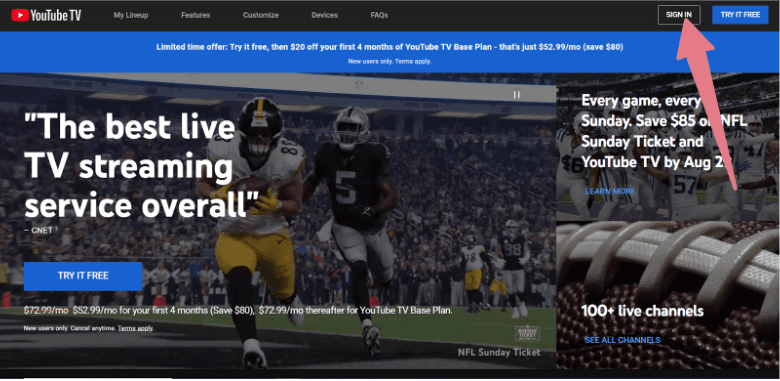
Step 2: Access your account settings.
Once logged in, locate and click on your profile icon or avatar, typically found in the top-right corner of the screen. This will open a dropdown menu with various options.
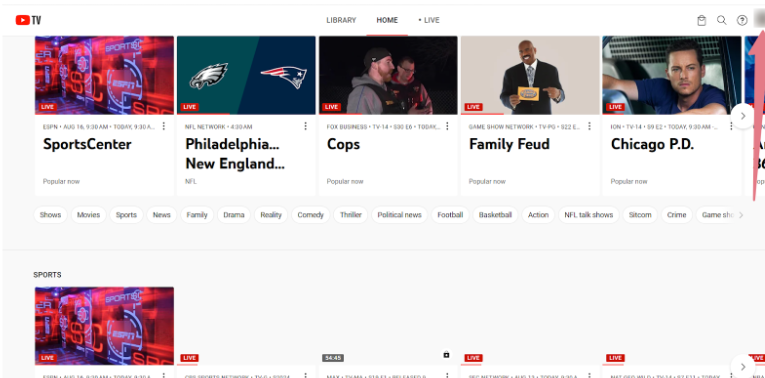
Step 3: Navigate to the membership section
In the dropdown menu, look for and select “Settings” or “Account.” Within this area, you should find a section labeled “Membership” or “Subscription.” Click on this to proceed.
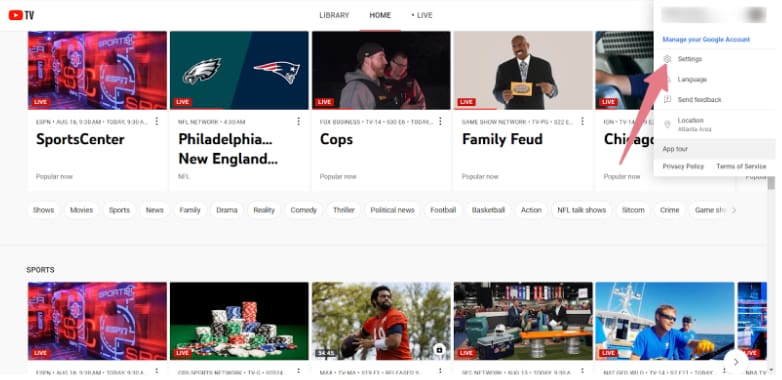
Step 4: Select the “Cancel Membership” option
Within the membership section, you’ll see information about your current subscription. Check the section termed “Cancel Membership” or “Manage Membership,” and click on this to begin the cancellation process.
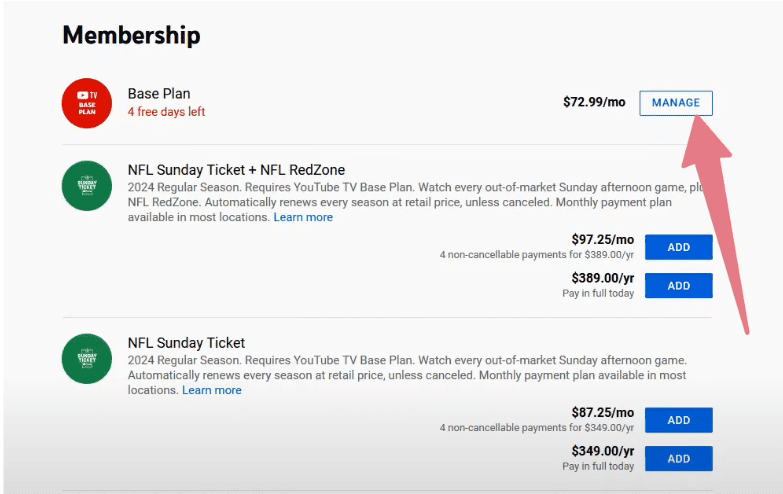
Step 5: Next, follow the on-screen instructions to confirm your cancellation
YouTube TV will ask you to confirm your decision and may offer alternatives like pausing your subscription. If you’re sure about canceling, continue through these prompts.
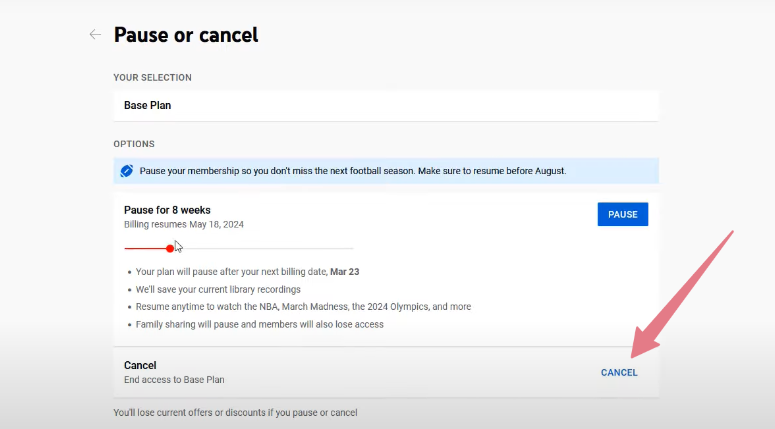
Finally, look for a button that says “Confirm Cancellation” or “Cancel Membership” and click it to complete the process.
YouTube TV Cancellation Methods (Any Device)
While these steps provide a broad outline, the specific process for canceling YouTube TV on iPhone/iPad and Android devices remains the same; there might be slight differences:
Cancelling YouTube TV On iPhone/iPad
If you subscribed to YouTube TV through your Apple device, follow these steps to cancel your subscription:
Step 1: Open Safari on another browser and visit the YouTube TV website.
Step 2: Tap on your profile icon at the top-right corner of your screen.
Step 3: Go to Settings > Membership.
In the menu that appears, tap on “Settings,” then find and select “Membership.”
Step 4: Select “Cancel Membership.”
Step 5: Choose a reason for cancellation. YouTube TV would ask why you’re canceling. Select the most appropriate reason from the options provided. This step is often optional but helps improve their service.
Step 6: Click on “Continue Canceling” and then “Cancel Membership” to confirm. You’ll need to verify your decision twice. First, tap “Continue Canceling,” on the next screen, tap “Cancel Membership” to finalize your cancellation.
Cancelling YouTube TV On Android
To cancel your YouTube TV subscription directly through the Android app, follow these steps:
Step 1: Open the YouTube TV app on the required Android device.
Step 2: Once signed in, click on your profile icon in the top-right corner.
Step 3: Go to Settings > Membership.
In the menu that appears, tap “Settings,” then find and select “Membership.”
Step 4: Select “Cancel Membership.”
Look for the option to cancel your membership and tap on it.
Step 5: Choose a reason for cancellation if prompted by YouTube TV.
Step 6: Tap “Continue Canceling” and then “Cancel Membership” to confirm. Here, too, you’ll need to confirm your decision twice. First, tap “Continue Canceling,” and on the next screen, tap “Cancel Membership” to finalize your cancellation.
Once you follow through these steps, your YouTube TV subscription will be canceled. Remember, if you subscribed through Google Play, you might need to cancel through the Google Play Store instead.
In that case, open the Google Play Store app, go to Subscriptions, find YouTube TV, and select “Cancel Subscription.”
What Happens After You Cancel Your YouTube TV Subscription
YouTube TV has introduced an important update for 2026:
Canceling your YouTube TV membership no longer removes access immediately, including during free trials.
Here’s what you can expect after canceling:
1. Continued Access Until Your Billing Cycle Ends
You’ll still be able to watch YouTube TV until the end of your current payment period, even after cancellation.
2. Free Trials Also Remain Active
If you cancel during a free trial, your access will continue until the trial expires, a major change from previous years.
Need Access Removed Immediately?
Instant cancellation is no longer automatic. To end access right away, you must contact YouTube TV Support.
3. No Additional Charges
After your cancellation is confirmed, YouTube TV will not charge you for upcoming billing cycles.
4. DVR Recordings Become Unavailable Once Access Ends
Your saved and recorded content stays available only until your membership period officially ends.
5. Your Account Information Remains Saved
Your settings, preferences, and profile remain intact, making it easy to reactivate your membership anytime.
6. Discounts and Promotional Pricing Will Be Lost
Any discounts or special pricing applied to your account won’t be available if you decide to resubscribe later.
If you need to cancel and remove access immediately, even before your billing cycle ends, you must contact YouTube TV’s support team directly.
Contacting YouTube TV Support
If you encounter issues while canceling your YouTube TV subscription or need additional assistance, contacting YouTube TV support can be helpful. Their customer service team can be contacted in several ways.
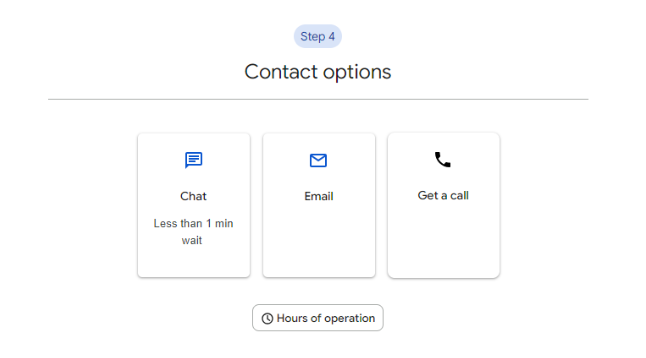
To get support from YouTube, you need to:
Step 1: Click the Help icon with a question mark from the navigation bar.
Step 2: Under the option – “Need more help,” click on “Contact Us.”
Step 3: Follow the onscreen prompts to chat, email, or request a YouTube TV support team call.
YouTube TV Chat Support Operation Hours:
- Fri – 12:00 AM-11:59 PM
- Sat – 12:00 AM-11:59 PM
- Sun – 12:00 AM-11:59 PM
Remember to have your account information ready when contacting support for a smoother experience.
Alternative to Canceling YouTube TV- Pausing Membership
If you’re not ready to entirely cancel but need a temporary break, YouTube TV offers the option to pause your membership:
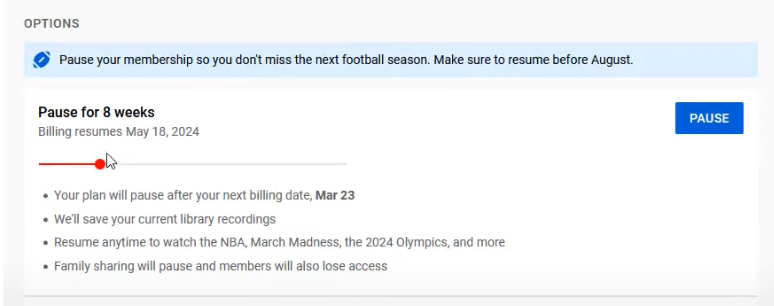
Instead of canceling, you can choose to pause the YouTube TV membership for up to 6 months. To pause the active YouTube TV subscription, follow the same steps as canceling until “step 5,” but select “Pause Membership” instead of “Cancel.”
Effects of Pausing Your YouTube TV Membership:
- You won’t be charged during the pause period
- You won’t have access to live TV or the ability to record new programs
- Your previous recordings will be saved (subject to the standard 9-month expiration)
- Family sharers will also lose access after pausing YouTube TV
- You will lose any offers or discounts applied when canceling
Resuming Membership
You can resume your membership at any time before the scheduled resume date by visiting YouTube TV and selecting the option to resume.
Additional Considerations While Canceling YouTube TV Subscription
When canceling your YouTube TV subscription, keep these additional points in mind:
- Cancelling Add-ons: If you have any add-ons like Sports Plus or 4K Plus, cancel these separately if you no longer want them.
- Removing Devices: After cancellation, you may want to remove YouTube TV from your devices to free up space and avoid confusion.
- Customer Support: If you encounter any issues during the cancellation process or have questions about your account, don’t hesitate to contact YouTube TV’s customer support. They can assist and ensure your cancellation is processed correctly.
More On YouTube:
Conclusion: Canceling YouTube TV Needs Only 5 Steps!
Canceling your YouTube TV subscription now takes only a few steps and works the same way across devices. Whether you want to cancel or simply pause your membership for a while fully, YouTube TV gives you flexible options.
Be sure to manage your membership through the platform where you first subscribed, and don’t forget to watch your saved content before your access ends.
Following this guide, you can confidently manage your YouTube TV subscription and decide which plan best suits your current needs and preferences.
