
Even with fast internet, videos can pause or load endlessly due to network congestion, outdated devices, or app glitches.
Simple fixes like restarting your router, adjusting WiFi placement, using an Ethernet cable, or lowering video quality can make a huge difference.
In this guide, we’ll walk you through 7 proven ways to stop buffering, optimize your streaming devices, and get smooth playback on Netflix, Hulu, Disney+, and other popular platforms without frustration.
Easy Slow Streaming Fixes to Try
When your stream keeps pausing and loading, these immediate solutions target the most common causes of buffering problems and can restore smooth playback quickly.
- Restart your router and streaming device.
- Close unused apps and disconnect other devices.
- Move closer to your WiFi router.
- Use an Ethernet cable for a stable connection.
- Lower your streaming quality settings.
- Update your streaming apps and device firmware.
- Contact your Internet Service Provider (ISP).
These fixes work because they address bandwidth limitations, device performance issues, and connection stability problems that cause most streaming interruptions.
3 Reasons Why Slow Streaming Causes Buffering
Even with fast internet, buffering still happens for several reasons beyond your connection speed.
1. Network Congestion at Home
Even with high-speed internet, buffering can happen when multiple devices, like phones, TVs, and laptops, are connected at the same time. Each one uses bandwidth, and this overload slows down your stream significantly.
2. Outdated Devices or Low Processing Power
Older streaming devices or smart TVs may not handle high-resolution content efficiently. Limited RAM, older CPUs, or outdated software can prevent smooth playback, especially for HD or 4K streams, causing frequent pauses.
3. App-Specific or Server-Side Issues
Sometimes, the streaming platform itself is the problem. App glitches or server overloads during peak hours can cause buffering, even if your internet is fast and your device is updated and working fine.
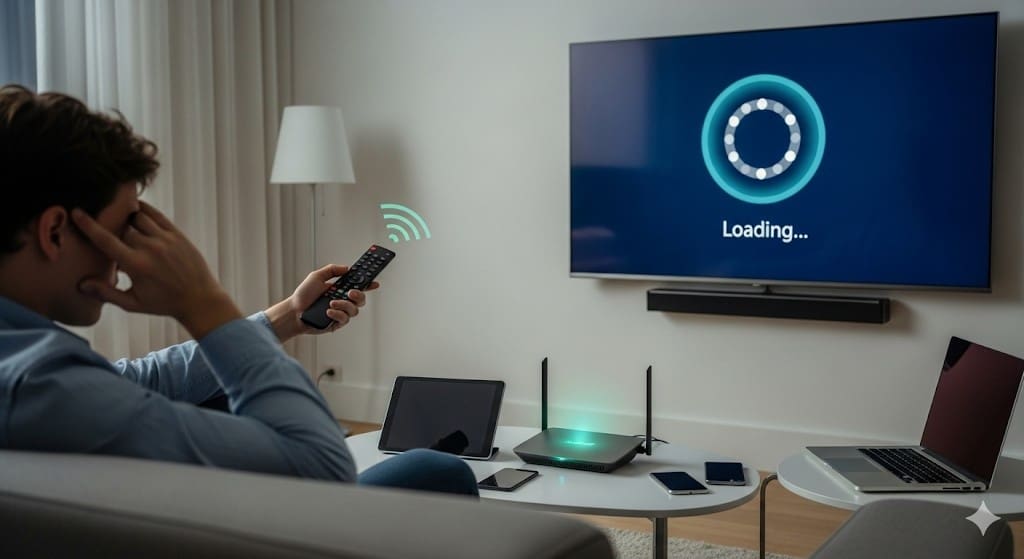
7 Proven Ways To Fix Slow Streaming And Stop Buffering
These practical solutions require no technical expertise and can be completed at home using equipment you already own. Each method targets specific causes of buffering problems, from network congestion to device limitations.
1. Restart Your Router and Streaming Device
Unplug both your router and streaming device for 30 seconds, then plug them back in. This simple reset clears cached data and refreshes your network connection.

Your browser can get overloaded with temporary and cached data that slows it down, and the same applies to streaming devices. Most connection issues resolve after this basic restart, making it the most effective first step.
2. Close Background Apps and Devices
Multiple devices using your internet simultaneously split your available bandwidth. Check how many phones, tablets, computers, and smart home devices are connected to your network.
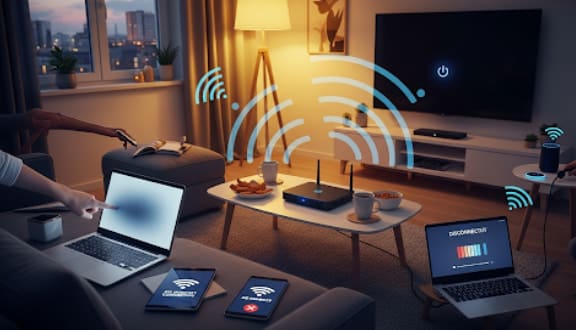
Close streaming apps running on other devices, pause downloads, and disconnect devices you’re not actively using. Each connected device consumes bandwidth, even when idle.
3. Move Closer to Your WiFi Router
WiFi signal strength decreases with distance and obstacles. Walls, floors, and furniture block wireless signals, reducing the data speed reaching your streaming device.
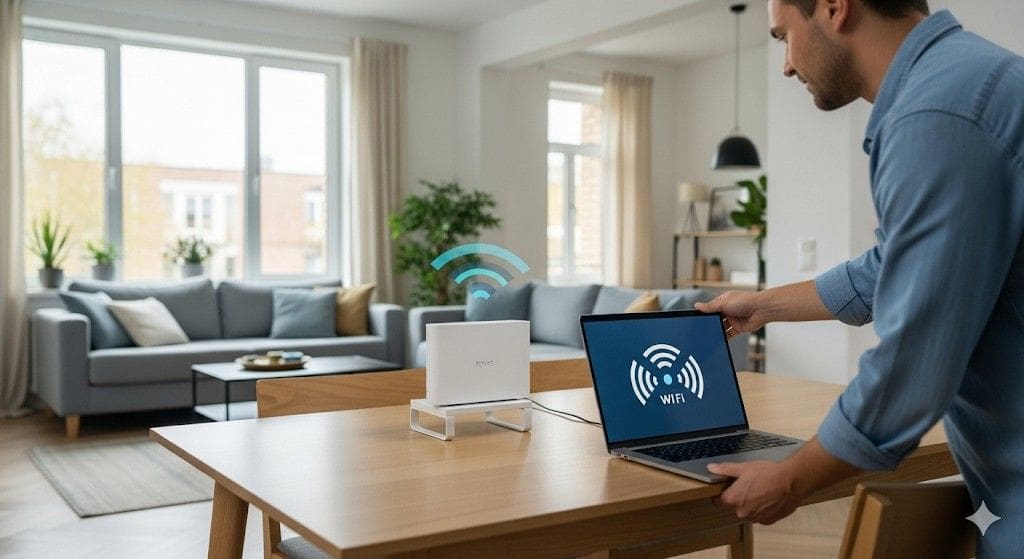
Move your device within 30 feet of your router with minimal obstructions between them. Position your router in a central, elevated location away from other electronics that can cause interference.
Adjust your router’s antennas for optimal coverage, vertical for single floors, angled for multi-level homes.
For larger spaces, WiFi extenders or mesh systems can strengthen signals that ensure smooth, uninterrupted streaming in every corner.
4. Switch to Ethernet Cable Connection
A new Ethernet cable can support speeds of up to 1 Gbps, nearly 7 times faster than the speed of a typical home wireless router. Wired connections provide stable, consistent speeds without the interference that affects WiFi.
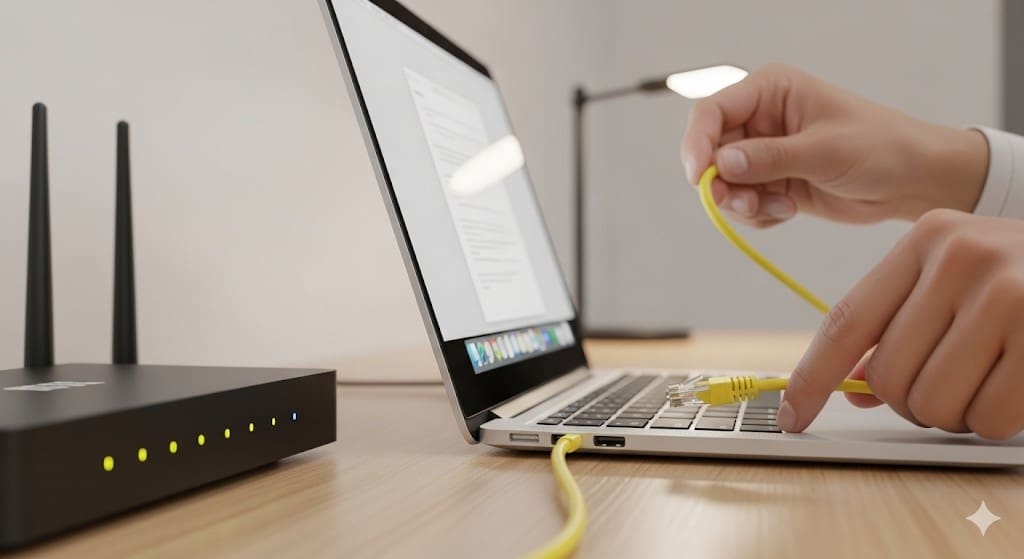
Use this solution when the WiFi signal is weak or when multiple people are streaming simultaneously. Ethernet eliminates wireless connectivity issues. Wired connections are often more stable than wireless ones, especially for streaming.
If buffering persists, the issue might be the type of connection. Using traditional cable TV vs streaming can sometimes offer a more stable connection and reduce slow streaming errors.
5. Lower Your Streaming Quality Settings
High-definition video requires significantly more bandwidth than standard definition. Adjust your streaming quality to match your internet speed and reduce buffering.
Netflix: Go to Account Settings > Playback Settings > Set to “Medium”.
YouTube: Click the gear icon > Quality > Select 480p or 720p.
Hulu: Settings > Data Saver > Enable.
Streaming Quality vs Bandwidth Requirements
| Quality | Required Speed |
|---|---|
| 480p (SD) | 3 Mbps |
| 1080p (HD) | 5 Mbps |
| 4K (Ultra HD) | 25 Mbps |
In order to be able to watch videos in Full-HD without interruption, at least 5 Mbps should reach your device.
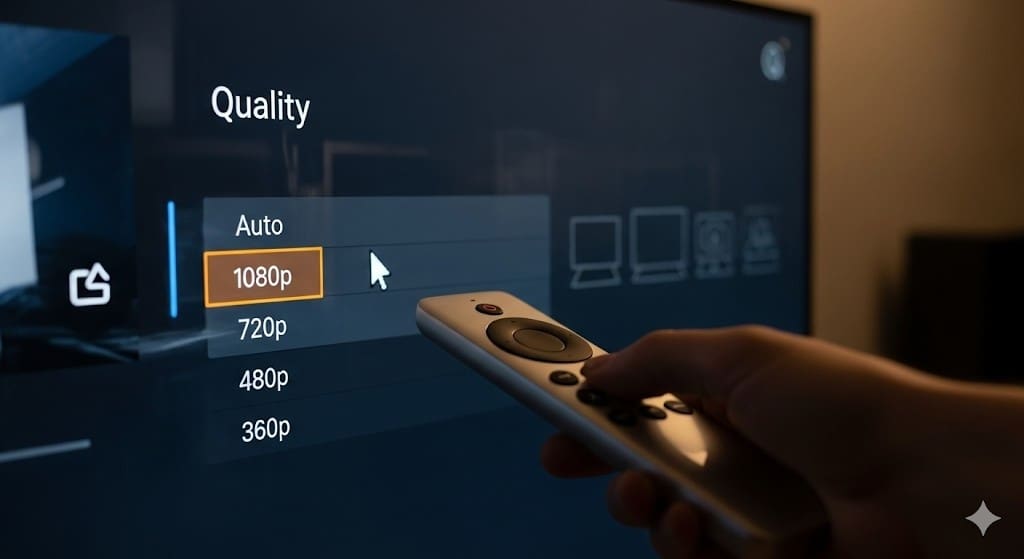
In order to watch videos in Full-HD without interruption, at least 5 Mbps should reach your device.
For 4K-UHD, platforms like Disney+ recommend up to 25 Mbps, while the Netflix experience typically requires around 15 Mbps for smooth playback.
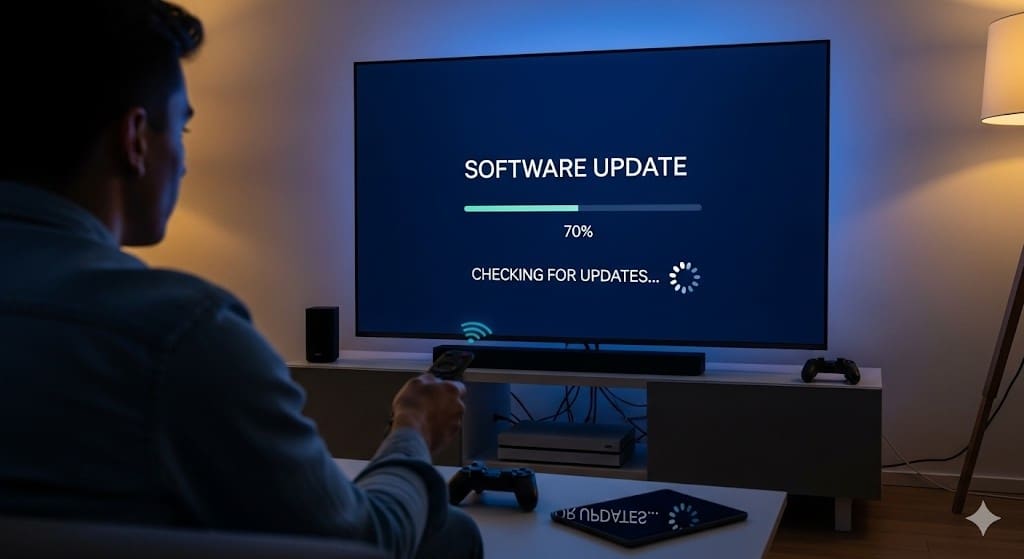
6. Update Your Streaming Apps and Device Software
Outdated software contains bugs that cause buffering and performance issues. Updated apps run more efficiently and connect better to streaming servers.
Smart TVs: Settings > Software Update > Check for updates.
Mobile/Tablet Apps: Visit App Store or Google Play Store for updates.
Streaming Devices: Roku, Fire Stick, Apple TV – check System Updates in settings.
Regular updates improve streaming performance and fix known connectivity problems, especially when you’re setting up new apps.
7. Contact Your Internet Service Provider
When basic troubleshooting fails, contact your ISP to identify network-level problems. Ask about signal strength, check for service outages in your area, and request speed tests from their end.

Request a router upgrade or signal booster if your equipment is outdated. Report high-latency or packet loss issues that might not show up in basic speed tests.
Document your internet speeds and buffering times before calling to help technicians diagnose the problem more quickly.
Device-Specific Slow Streaming & Buffering Solutions
Different streaming devices have distinct troubleshooting steps that target their specific operating systems and common issues. These device-specific fixes address problems that general solutions might miss.
| Device | Specific Fix |
|---|---|
| Samsung Smart TV | Settings > Apps > Select streaming app > Clear cache |
| Fire TV Stick | Hold the Select + Play buttons for 10 seconds |
| Android TV | Settings > Device Preferences > Storage > Clear cache |
| Roku | Settings > System > Power > System restart |
Device-specific solutions target common software issues that cause buffering on each platform.
These targeted fixes resolve device-specific software conflicts and memory issues that standard troubleshooting might miss.
If buffering issues persist on traditional platforms, consider alternative methods to access live content. Learn how to watch local channels without cable using various accessible tools and services.
Other Problems That May Be Causing Slow Streaming
Sometimes, buffering happens even when your internet and devices are fine. Streaming platforms can experience server downtime or technical glitches, slowing playback for everyone.
High traffic during peak hours, when many users are watching popular shows, can create temporary bottlenecks.
According to the streaming service market share report, major platforms like Netflix and Amazon Prime Video dominate viewer attention during these times, increasing server loads and latency issues.
Using a VPN can also introduce lag, as your data is rerouted through different servers, which may reduce speeds.
Also Checkout:
Conclusion: Get Back To Binge-Watching Without Interruptions
Router restarts and ethernet connections solve 90% of buffering problems by addressing the most common causes. These seven methods target different aspects of your streaming setup, from network stability to device performance.
Try these solutions in the order listed, starting with the router restart. Most streaming issues resolve quickly once you identify and fix the underlying cause affecting your connection speed or device performance.
FAQs
Restart your router, close background apps, and lower video quality to match your internet speed for immediate results.
Enable data saver mode, reduce video quality to 720p or lower, and clear your streaming app cache regularly.
Use Ethernet connection, upgrade the internet speed to 25+ Mbps, and ensure no other devices are consuming bandwidth simultaneously.
Network congestion, outdated device software, or too many connected devices can cause buffering despite fast internet speeds.
Clear app cache, restart the device by holding the Select + Play buttons, and ensure a strong WiFi signal.
