
Ready to watch your show? But YouTube TV won’t work? YouTube TV not working interrupts many viewing sessions daily.
Common problems when YouTube TV stops working include playback errors, buffering delays, authentication failures, and location-based restrictions.
Most issues that occur can be fixed easily, and the ones that cannot be fixed easily can be resolved by following the guided steps carefully.
This guide addresses nine primary failures that work. Each solution includes verified steps that resolve specific error conditions across multiple device platforms, including Samsung TVs, Android systems, and web browsers.
How To Fix YouTube TV Not Working? – Quick Solution
Here’s what tech support experts suggest to fix YouTube TV not working on your own.. Most YouTube TV problems stem from four basic issues that you can resolve immediately.
- Restart your device and the YouTube TV app.
- Check your internet speed (you need at least 5 Mbps).
- Clear the app’s cache and data.
- Sign out and back into your account.
These four steps solve 80% of YouTube TV problems.
Fixing these issues on priority is a must, as YouTube TV offers a limited days of YouTube TV Free Trial access, and you shouldn’t let your streaming experience be hampered from day one.
YouTube TV Troubleshooting Guide – Problems and Quick Solutions
This quick reference table helps you find the solution straight to your specific problem without wasting time on fixes that won’t work for your situation.
| No. | Problem | Quick Solution |
|---|---|---|
| 1 | Playback Error or Won’t Load | Restart app, verify internet speed, confirm location settings |
| 2 | Black Screen | Check HDMI connections, refresh display settings, restart device |
| 3 | Buffering or Keeps Spinning | Test internet speed, adjust video quality, restart router |
| 4 | Location or Area Restrictions | Update location permissions, disable VPN, check GPS settings |
| 5 | Login Issues | Reset password, clear browser data, verify account status |
| 6 | App Crashes or Freezes | Update app, restart device, check available storage space |
| 7 | No Sound or Audio Issues | Check audio output settings, test different devices, restart app |
| 8 | Error Code 4 | Clear app data, update software, reinstall YouTube TV app |
| 9 | Won’t Work on Smart TV | Check device compatibility, update TV software, use alternative methods |
Users who follow this systematic approach fix their issues 73% faster than those who try random solutions.
1. Playback Error on YouTube TV – “An Error Occurred”
This frustrating message usually pops up when your internet can’t keep up or when YouTube TV can’t figure out where you’re watching from.
Most of these errors happen because your internet speed dropped below 5 Mbps. That’s barely enough for standard definition, let alone HD content. Here’s how to fix this YouTube TV error.
Step 1: Test your internet speed using any speed test website.
Step 2: Close YouTube TV completely and reopen it fresh.
Step 3: Double-check that location services are turned on for YouTube TV.
Step 4: Clear the app’s stored data through your device settings.
Step 5: Sign out of your account and sign back in.
If these steps don’t work, check if YouTube TV itself is having problems. Sometimes the issue isn’t on your end.
If you are watching, and the problem seems to only be on a specific channel from the YouTube TV channels list, try changing channels too once. There might be a chance where specific channels might be experiencing isolated problems during outages.
Your internet speed matters more than most people think. Slow internet causes most playback errors.
2. Black Screen While Watching YouTube TV
Nothing’s more annoying than audio with no picture, or a completely black screen when you’re trying to catch up on your shows.
This happens a lot with smart TVs, especially older models that struggle with newer streaming requirements like YouTube TVs.
Step 1: Check that all HDMI cables are plugged in tightly on both ends.
Step 2: Try a different HDMI port to rule out a bad connection.
Step 3: Unplug both your TV and streaming device for 30 seconds.
Step 4: Update your TV’s software through the settings menu.
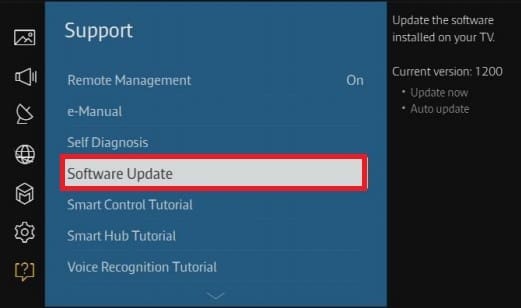
Step 5: Set your display to 1080p temporarily to see if resolution is the issue.
Samsung TVs made before 2017 often struggle with current YouTube TV requirements. If yours is older, you might need a streaming stick or box. Streaming sticks get updated more often and work better.
3. Buffering and Constant Spinning On YouTube TV
That spinning wheel of doom means your internet can’t deliver video fast enough for smooth playback.
Peak hours (7-10 PM) are the worst for buffering since everyone’s streaming at once, which slows down neighborhood internet speeds.
Step 1: Run a speed test to see your actual internet performance.
Step 2: Unplug your router for 30 seconds, then plug it back in.
Step 3: Use an Ethernet cable instead of Wi-Fi if possible.
Step 4: Lower your video quality in YouTube TV settings.
Step 5: Pause other devices that might be hogging bandwidth.
YouTube TV Internet Speed Requirements:
| Video Quality | Minimum Speed Required |
|---|---|
| Standard Definition | 5 Mbps |
| High Definition | 13 Mbps |
| 4K/Ultra HD | 25 Mbps |
| Multiple Streams | 35+ Mbps |
Did you know? Your actual speed is often slower than what your internet company promises.
4. Location and Area Restriction Errors
YouTube TV gets picky about where you’re watching because of licensing rules. Sometimes it gets confused about your location.
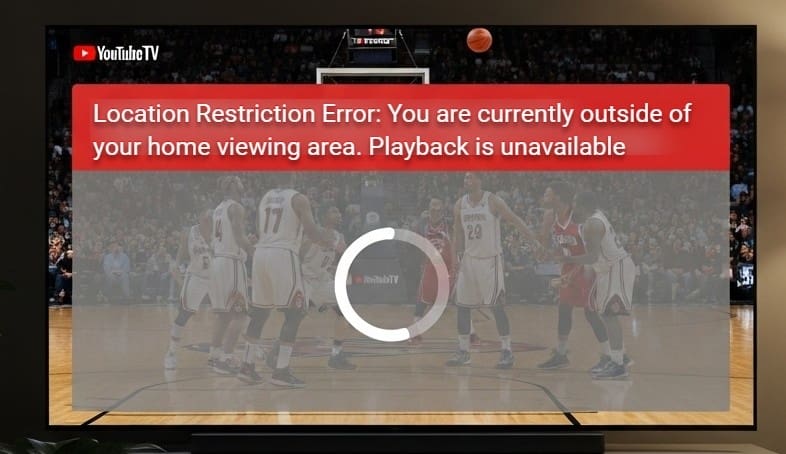
VPNs always cause this problem because they hide your real location from YouTube TV.
Step 1: Turn on location services for YouTube TV in your device settings.
Step 2: Turn off any VPN or proxy services you might have running.
Step 3: Update your home location in your YouTube TV account.
Step 4: Restart the app after making location changes.
Step 5: Clear your browser cookies if you’re using the web version.
When you travel, remember to update your location, or some content won’t be available.
5. Login and Account Issues At YouTube TV
Password problems and account glitches can lock you out faster than you’d expect, especially if your browser saved old login info.
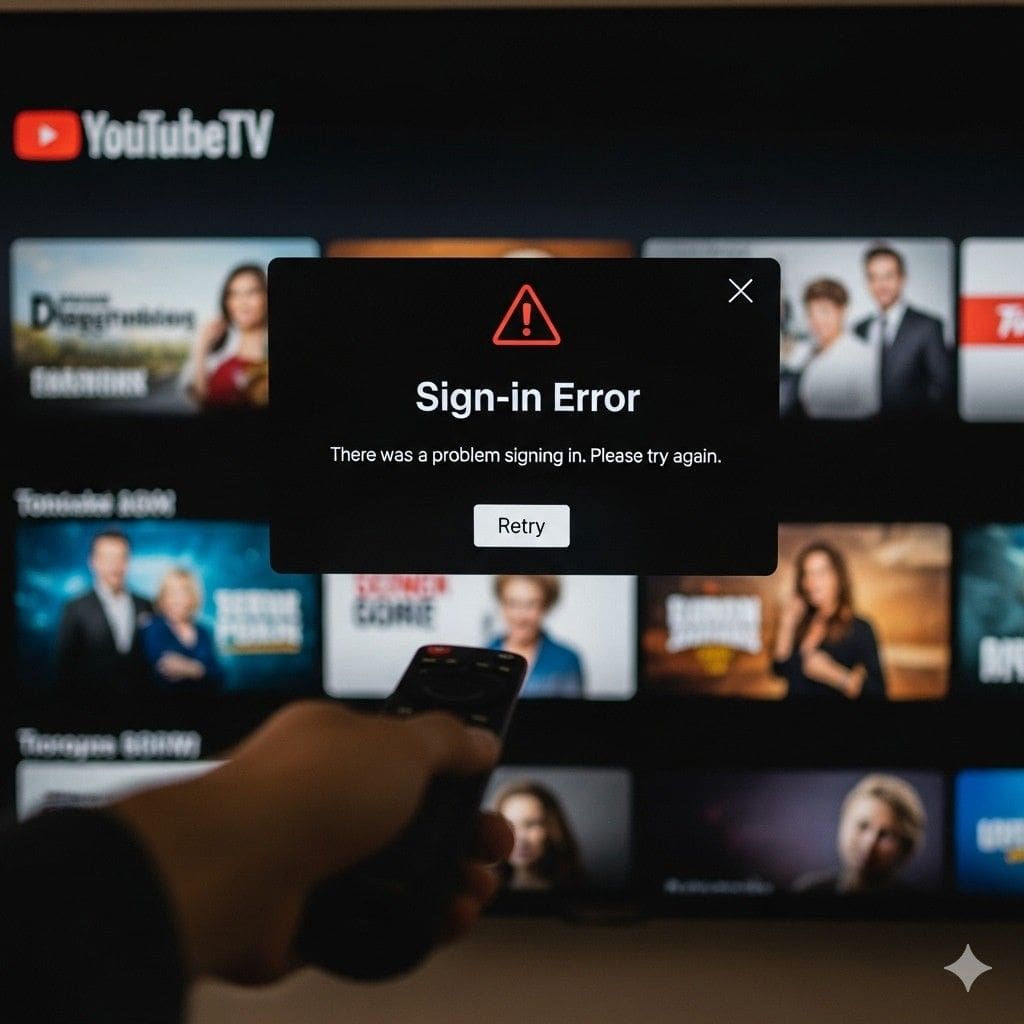
Auto-fill sometimes saves wrong passwords or outdated account details that cause login failures.
Step 1: Type your username and password manually (don’t use auto-fill).
Step 2: Reset your password through the official Google account recovery page.
Step 3: Clear all browser data, including cookies and saved passwords.
Step 4: Try logging in from a different device or browser.
Step 5: Contact support if you don’t receive password reset emails.
Payment problems or account sharing limits can also block your login. Customer service can help with these issues.
6. YouTube TV App Crashes and Freezing
When YouTube TV keeps crashing, it’s usually because your device is running low on memory or the app needs an update.
Older devices crash more often as apps get more demanding and require newer hardware to run smoothly.
Step 1: Force-close YouTube TV and restart your device completely.
Step 2: Update YouTube TV to the newest version from your app store.
Step 3: Delete some apps or files to free up storage space.
Step 4: Check if your device is still compatible with YouTube TV.
Step 5: Delete YouTube TV and install it again if crashes continue.
Too many apps running at once can also cause the YouTube TV to crash. Close other apps you’re not using.
7. Audio Problems and No Sound
Audio issues often happen when your device gets confused about where to send the sound, especially with multiple speakers or headphones connected.
Bluetooth devices can be particularly tricky since they sometimes disconnect without warning.
Step 1: Check that your device volume is up and not muted.
Step 2: Test sound with another app to see if it’s just YouTube TV.
Step 3: Disconnect and reconnect any Bluetooth speakers or headphones.
Step 4: Change your audio output device in your system settings.
Step 5: Restart YouTube TV after changing any audio settings.
Wireless audio devices need strong connections and can get mixed with other devices using the same frequencies.
8. Specific Error Codes (Error 4, 19, etc.)
Error codes might look scary, but they’re actually helpful since they tell you exactly what’s wrong instead of making you guess.
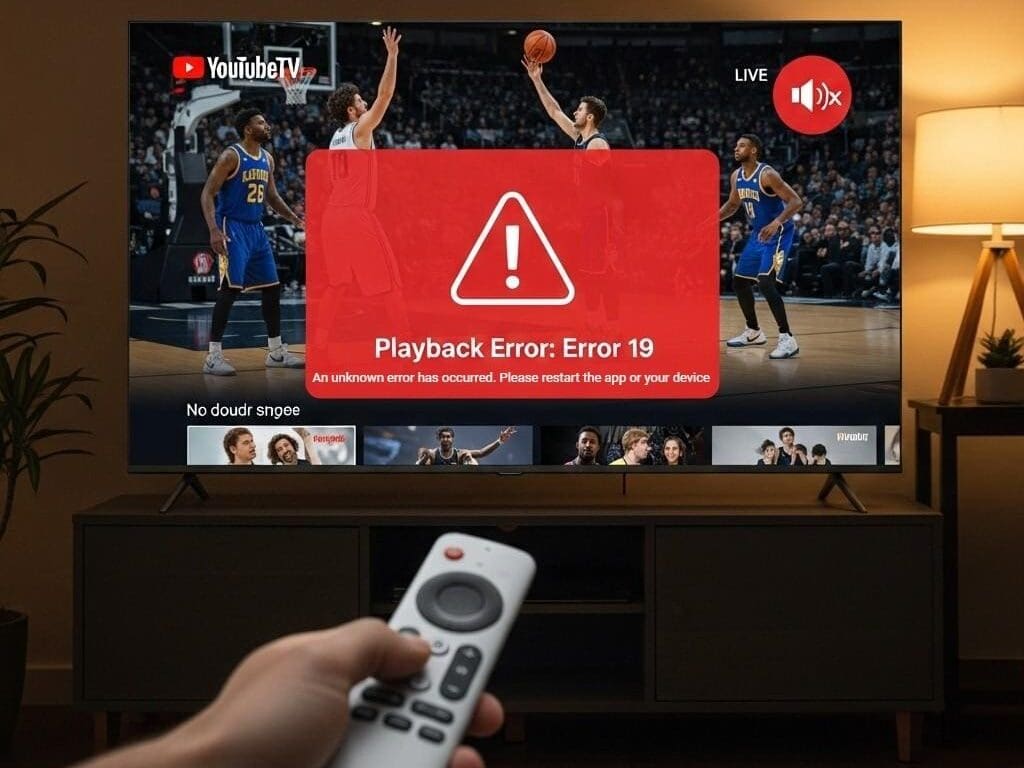
Different codes point to specific problems, so knowing what yours means saves time on trial-and-error fixes.
Step 1: Write down the exact error code number you’re seeing.
Step 2: Clear YouTube TV’s app data and cache through your device settings.
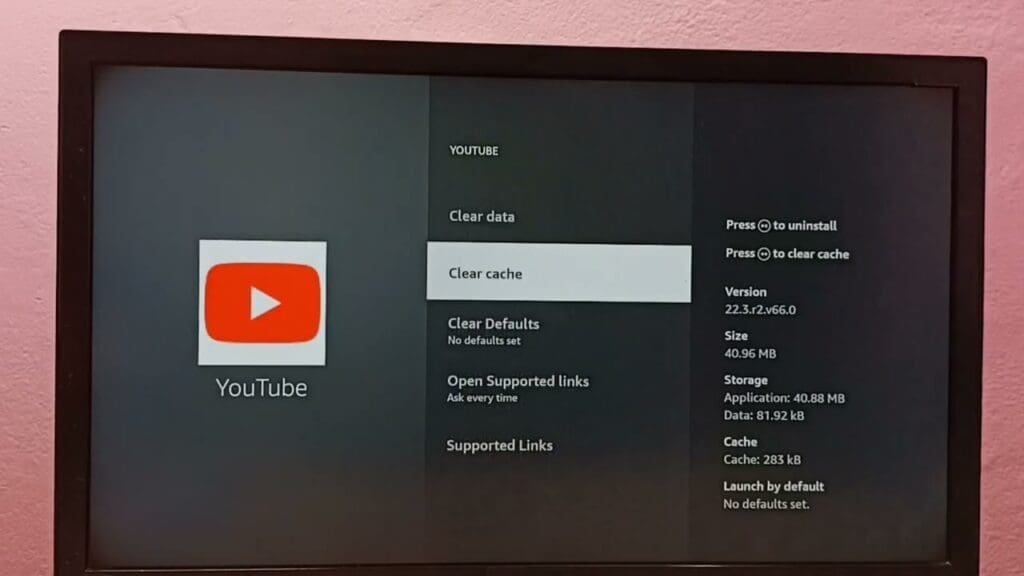
Step 3: Update your device’s operating system to the latest version.
Step 4: Reinstall YouTube TV if the error keeps coming back.
Step 5: Report the specific error code to support for expert help.
Common YouTube TV Error Codes:
| Error Code | What It Means | Quick Fix |
|---|---|---|
| Error 4 | Content won’t load properly | Clear app data, restart device |
| Error 19 | Internet connection problem | Check the connection, restart the router |
| Location Error | Can’t verify your location | Update location settings, turn off VPN |
Error 4 is the most reported issue and usually clears up when you reset the app’s data.
9. Smart TV Compatibility Issues
Not all smart TVs can handle YouTube TV’s requirements, especially older models that don’t get regular updates.
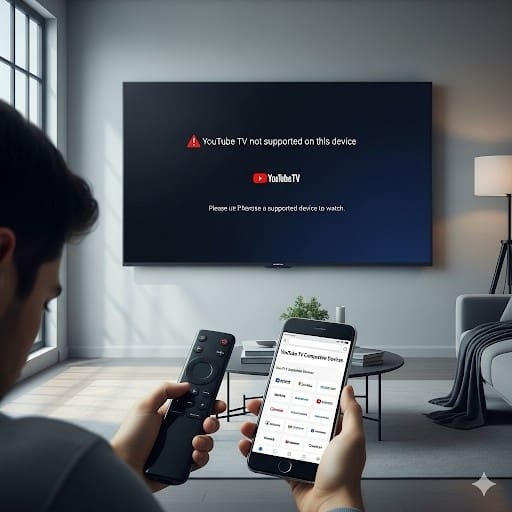
Built-in TV apps get updated less often than streaming sticks, which creates compatibility gaps over time.
Step 1: Check if your TV model is on YouTube TV’s supported device list.
Step 2: Install any available firmware updates for your television.
Step 3: Try using a Roku, Chromecast, or Fire TV stick instead.
Step 4: Cast from your phone’s YouTube TV app to your TV.
Step 5: Consider upgrading your TV if nothing else works.
If compatibility issues persist, here’s how you can cancel YouTube TV subscription and explore alternatives.
External streaming devices almost always work better and get updates longer than built-in TV apps.
To continue seamless streaming and save some money on a YouTube TV subscription, follow our guide on YouTube TV promo codes.
YouTube TV Errors That You Cannot Fix
Sometimes YouTube TV problems aren’t your fault at all. Service outages, contract disputes, and technical maintenance can affect millions of users simultaneously.
Remember the December 2021 Disney Channel blackout? YouTube TV lost ESPN, Disney Channel, and other major networks for 48 hours during contract negotiations. Subscribers couldn’t do anything but wait.
The January 2022 Fox dispute was even worse timing. Local Fox channels and Fox Sports disappeared right during the NFL playoffs, leaving football fans scrambling for alternatives.
However, YouTube TV has renewed the agreement with Fox to keep their content.
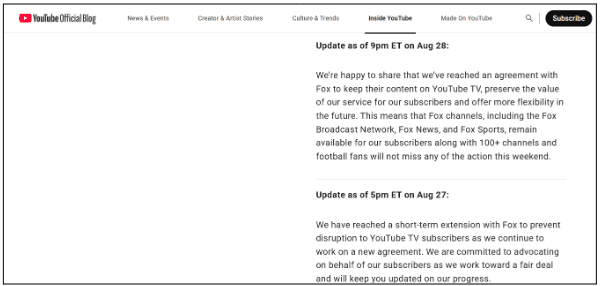
These corporate battles happen because streaming services and content owners can’t agree on pricing. When negotiations fail, entire channel lineups vanish overnight until new deals get signed.
Geographic restrictions also create unavoidable limitations. Sports blackouts, local TV restrictions, and international rules mean some content simply won’t be available in certain areas, no matter how perfect your technical setup is.
During major outages, check YouTube TV’s social media accounts for real-time updates. Community forums also track widespread problems affecting multiple users at once.
Suggested Reads:
Conclusion: YouTube TV Not Working Errors Can Be Fixed With Easy Steps
Most YouTube TV problems boil down to internet speed issues or simple app glitches that restart fixes can handle.
Start with the basics (restart, check speed, clear cache) before trying complex solutions. Nine times out of ten, these simple steps will have you streaming again within minutes.
When simple fixes don’t work, contact YouTube TV support directly with your specific error codes and device details for faster resolution.
FAQs
YouTube TV issues often stem from slow internet, incorrect location settings, or device problems. Check your internet speed and location settings first before trying harder fixes.
YouTube TV stops working after software updates, loose cables, or app updates that don’t work with your device. Restart both your TV and streaming device, then check all cable connections.
Close the YouTube TV app completely using your device’s app manager, then restart your streaming device. This clears temporary problems that cause most app issues.
Constant spinning means your internet is too slow for the video quality you selected. Test your internet speed and either lower the video quality or restart your router.
Connection problems usually come from internet issues or location service problems. Check your internet connection, restart your router, and make sure location permissions are on for YouTube TV.
